Run your hotel’s day-to-day operations in one place.
Room status, guest complaints, work orders, shift handoffs, inspections and cash counts — shared live by your front desk, housekeeping, maintenance and leadership.
Already on Travera? Log inTry the live demo
Vera, the AI assistant built into the Travera app.
Your team tells Vera what’s going on, the way they’d tell a manager. She checks your hotel’s live rooms and work orders, drafts what needs logging, and waits for a yes.
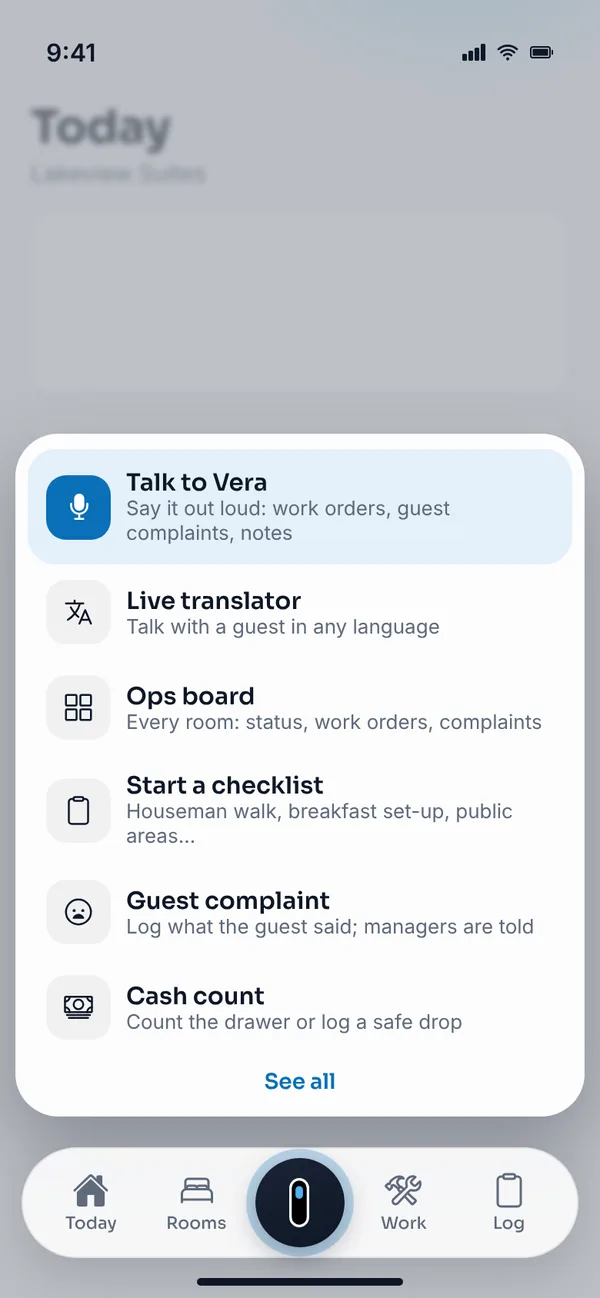
Tap the Travera button“Talk to Vera” is the first quick action for every role — front desk, housekeeping, maintenance and managers. 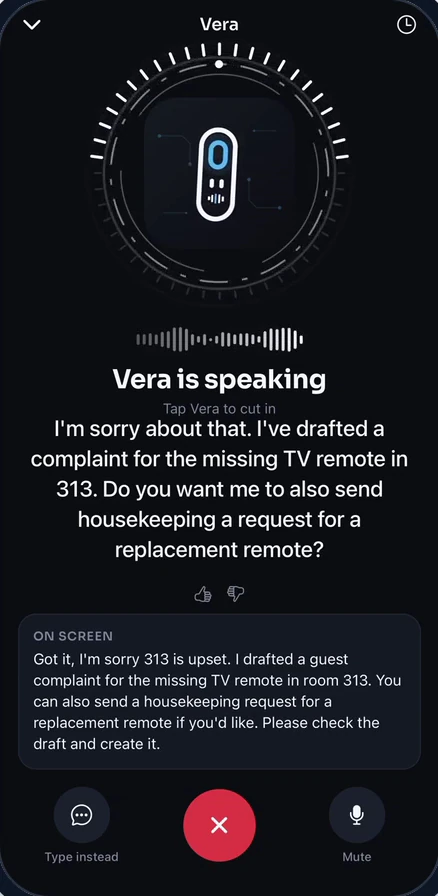
Say what happenedHands-free. Vera listens, answers out loud, drafts the paperwork and suggests the next step. 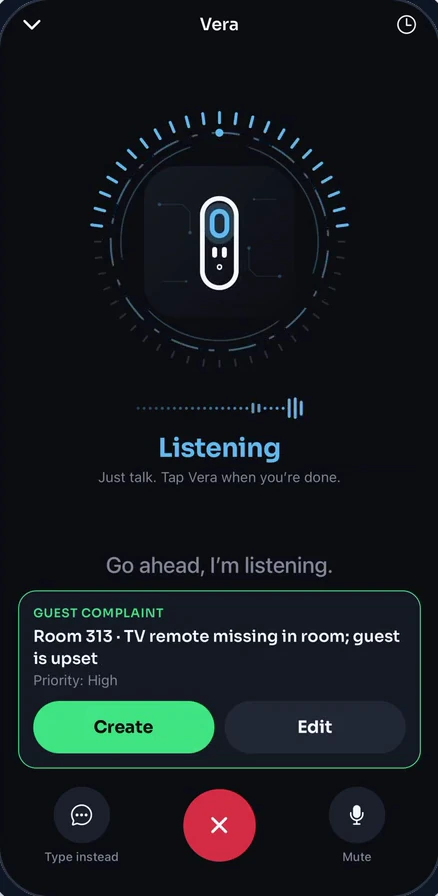
Check it and confirmVera’s draft appears on screen. Nothing is saved until you tap Create.
Pick something to tell Vera.
A sample conversation with a sample hotel. It runs right here in your browser — nothing is sent or saved.
Hi, I’m Vera. Tell me what’s going on and I’ll draft a work order or complaint, or ask me about rooms, work orders and pass-along notes.
- Drafts the paperworkA work order, a guest complaint, both, or a pass-along note — from one sentence.
- Answers from live data“What’s open in 211?” Vera checks rooms, work orders, pass-along notes, complaints, lost and found and packages.
- Acts only with your OKAsk her to mark a room clean or assign a work order. She proposes it; you confirm it.
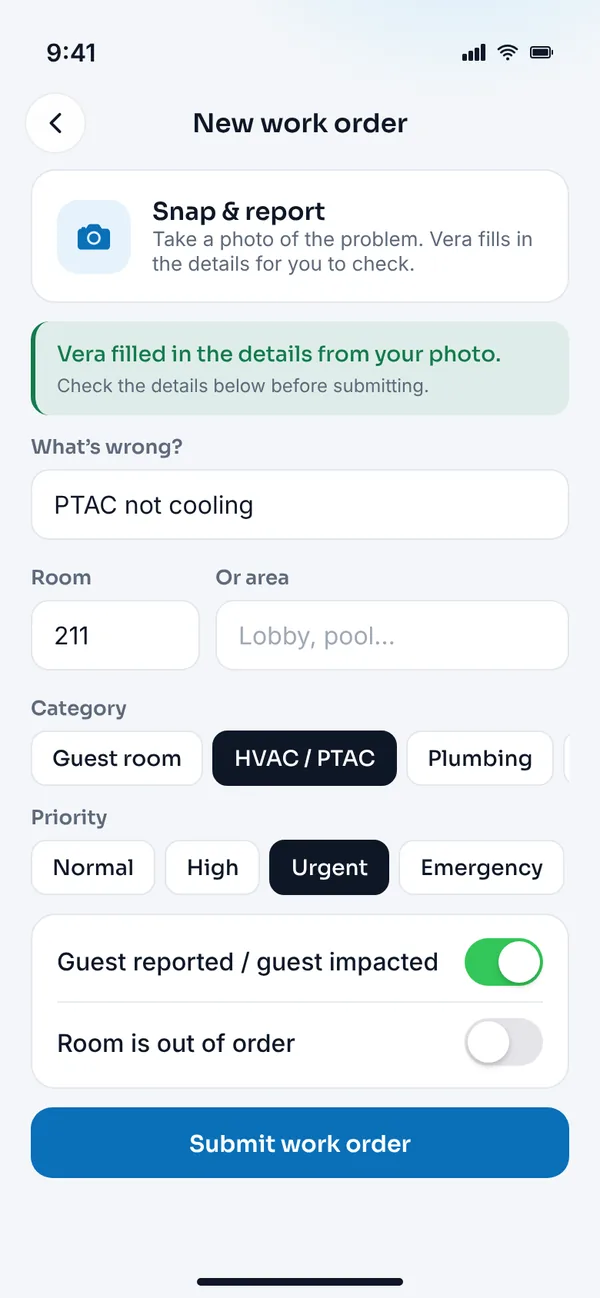
- Reads a photoSnap & report: photograph the problem and Vera fills in the work order for you to check.
Vera works in Travera on the web today, and in the Travera mobile app, now in testing for iPhone and Android. She only sees what the person using her is allowed to see.
Every department, working from the same live picture.
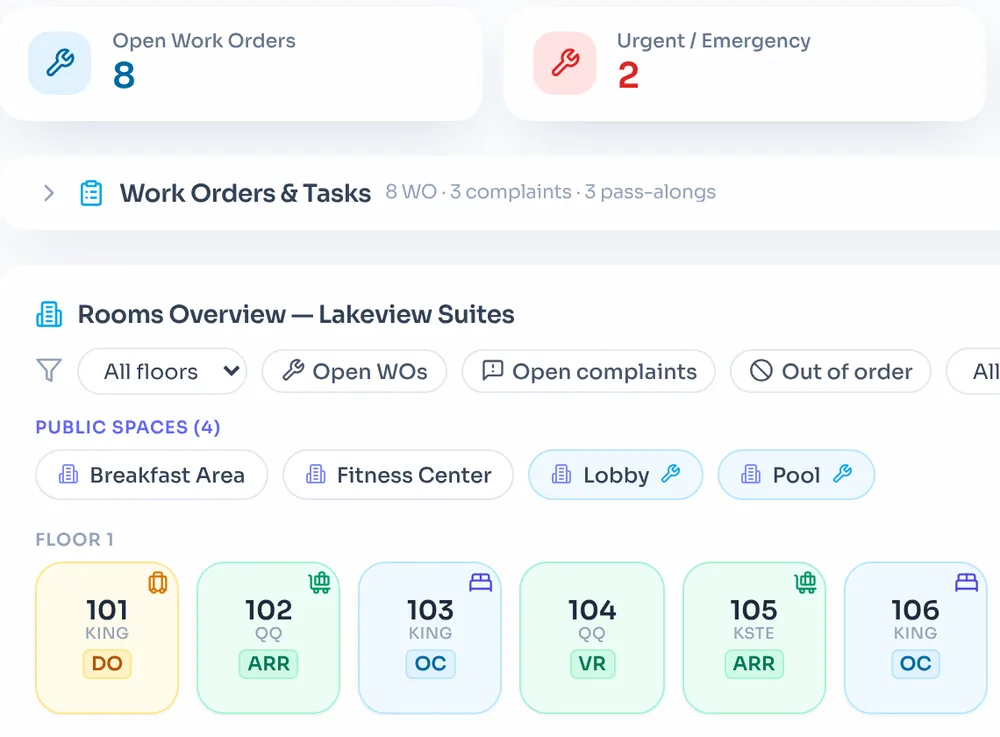
Real Travera screens, shown with a sample hotel. Each one is a job your team already does — without the whiteboard, the group text or the clipboard.
Handle the guest. Hand off the rest.
Complaints, shift notes and drawer counts live where the next shift can find them.
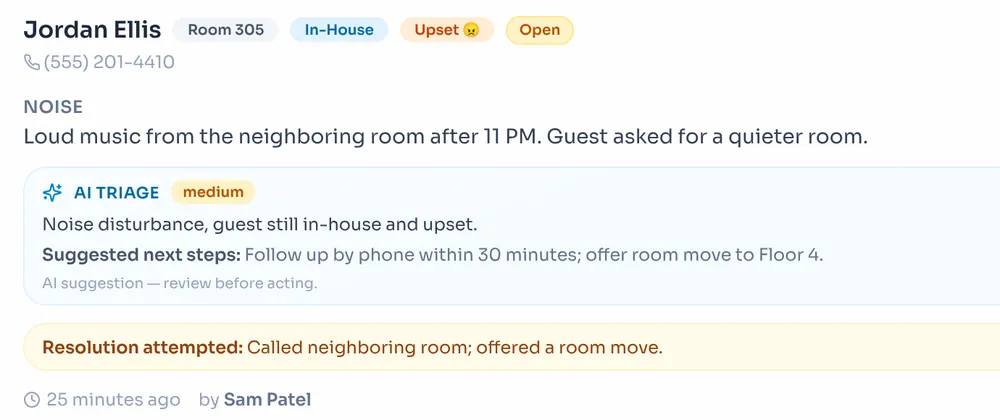
- Log a guest complaint with the room, the guest’s mood and what you already tried.
- Get a suggested next step from AI triage — your team decides what to do.
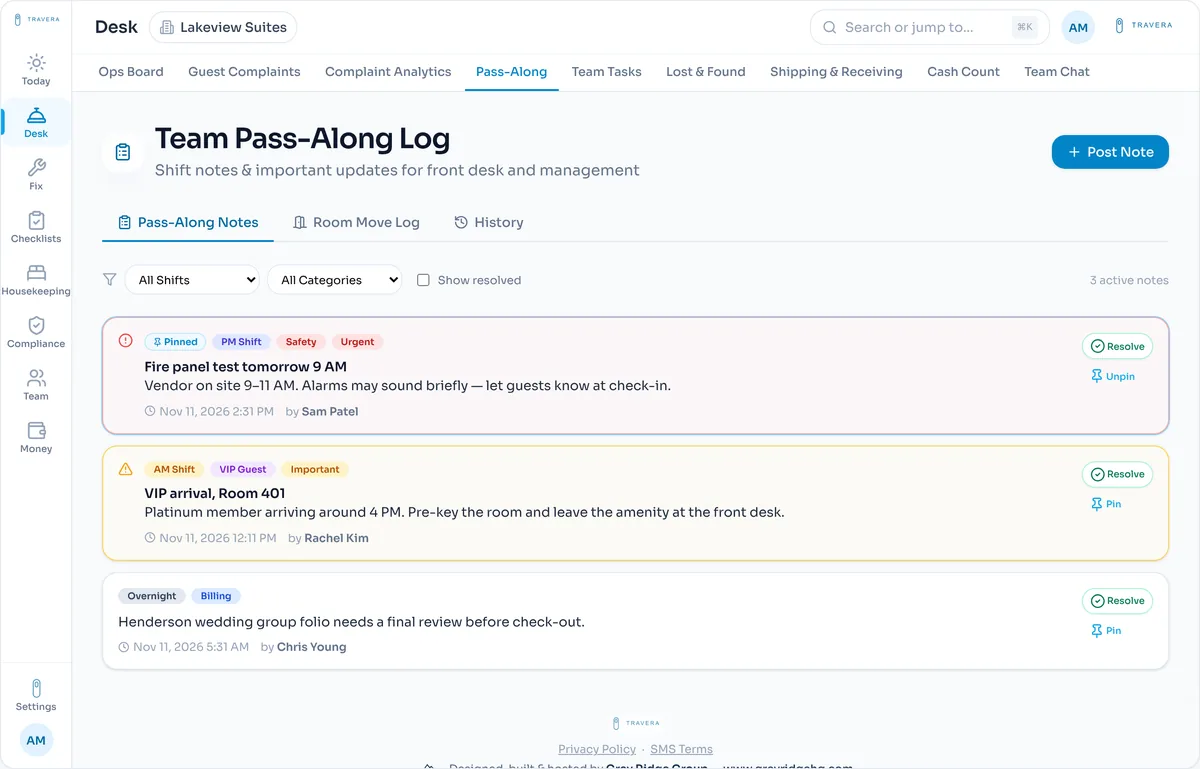
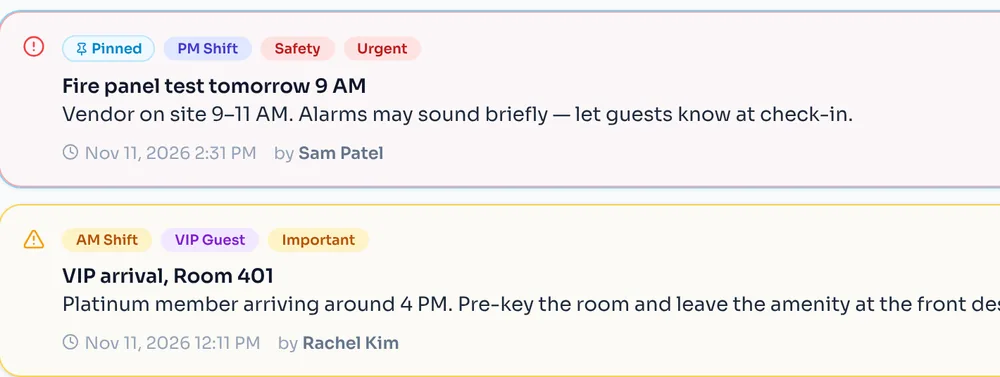
- Post a pass-along note and require the next shift to acknowledge it.
- Count the drawer and let Travera work out the variance.
Desk → Guest Complaints, Pass-Along, Cash Count
Rooms go from dirty to ready, live.
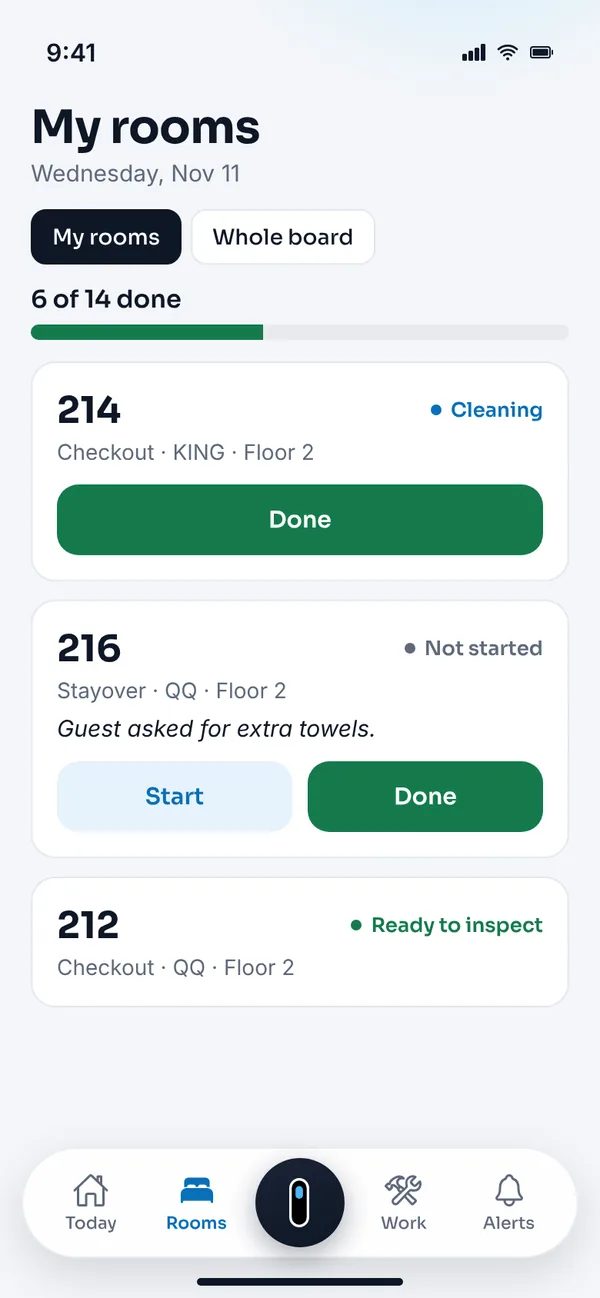
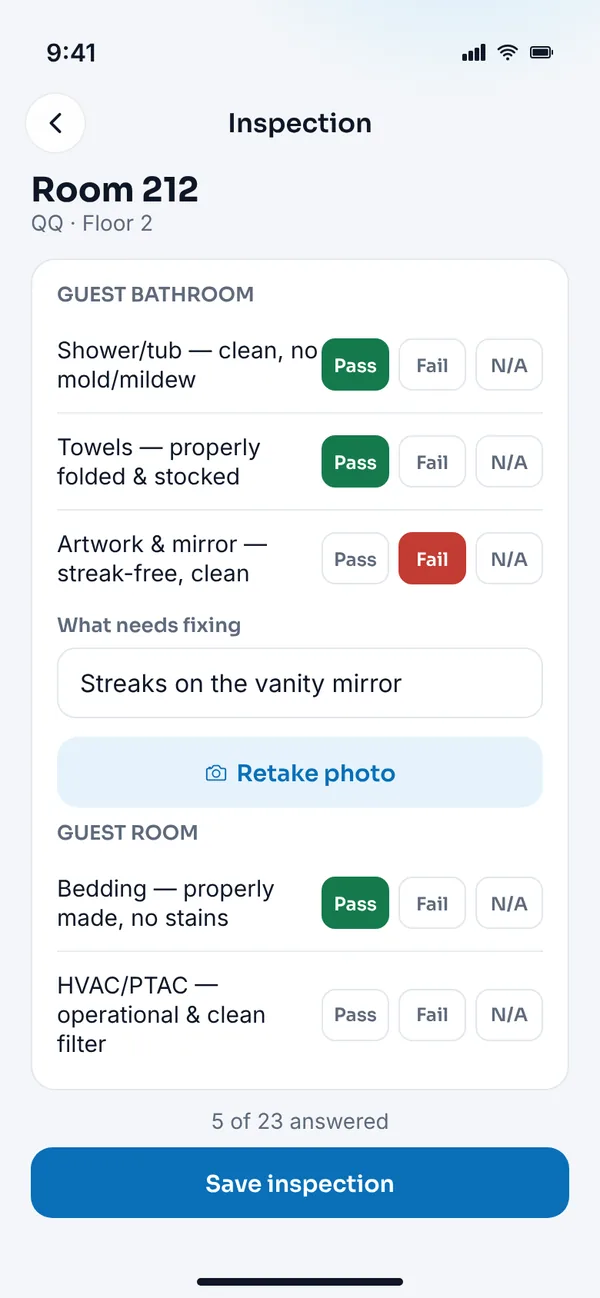
Housekeepers work from their phones; supervisors inspect without a clipboard.
- Tap Start and Done on each assigned room — taps are saved even without signal.
- Inspect a room item by item: pass, fail or N/A, with a photo of what needs fixing.
- Every failed item is logged as a deficiency, so it gets fixed.
Travera mobile → Rooms, Inspection
Every repair has an owner and a status.
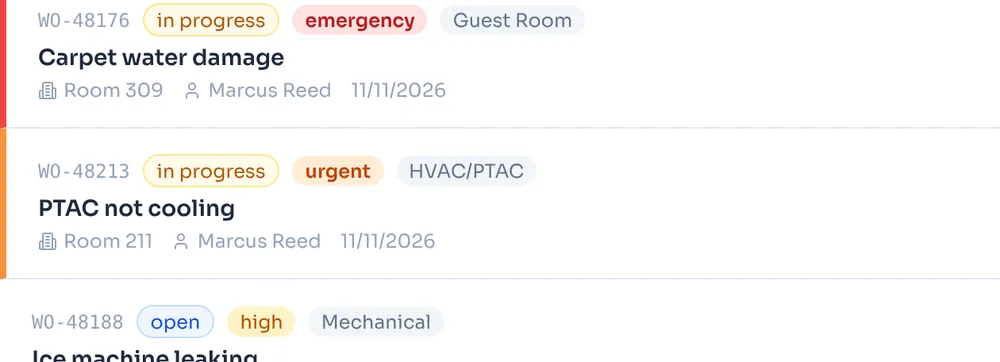
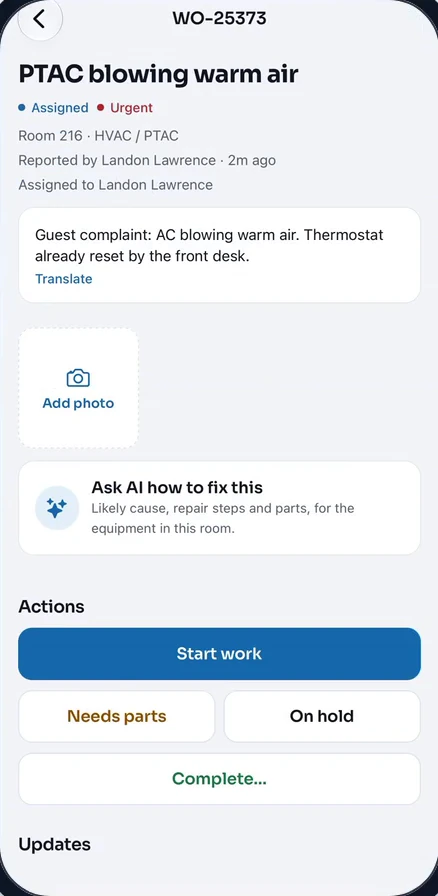
From the PTAC in 211 to the pool pump, engineering sees what’s urgent first.
- Snap a photo and Vera fills in the work order for you to check.
- Start, flag “needs parts” or mark complete from a phone, with notes and hours.
- Schedule preventive maintenance and see what’s overdue or due this week.
Fix → Work Orders · Travera mobile → Work order
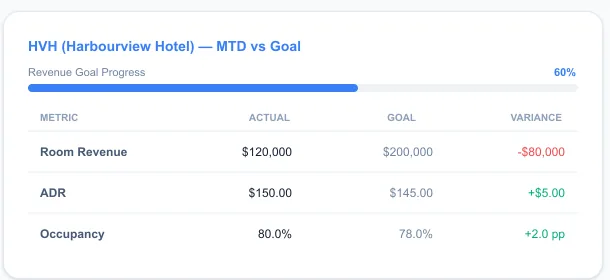
See every hotel without calling every hotel.
For general managers and management companies running more than one property.
- Compare hotels on room revenue, ADR, occupancy and RevPAR — month to date against goal.
- Switch to All Properties to review inspections, cash and night audit across your hotels.
- See which properties get the most guest complaints, and why.
- Turn modules on per hotel and set access by role and property.
Money → Performance Dashboard (sample data)
One AC call, start to finish.
A guest calls the desk: the AC is blowing warm air. Watch the call move from the front desk to maintenance and back in under two minutes — or follow the steps below.
Read the transcript
- When a guest calls back about their AC, can your front desk see what maintenance already did? With Travera, they can.
- Room 216 calls the desk. Your agent taps the room and logs the complaint: the guest’s mood, the problem, and what they already tried.
- From the same room, they create a work order for maintenance. Work order created: PTAC blowing warm air, urgent.
- Your tech picks it up in the Travera app, taps Start work, notes the fix by typing or by voice, and marks it complete. Status: completed — the fix is saved to the work order.
- Back at the desk, room 216’s history shows the complaint and the completed work order together, with the tech’s notes. When the guest calls back, your desk already knows what was done.
- Now meet Vera, the AI assistant built into Travera.
- Vera: “Hey Landon, Vera here. Your wish is my work order. What’s up?”
- Staff: “Hey Vera, the guest in 313 says the TV remote is missing and she’s upset.”
- Vera: “I’m sorry about that. I’ve drafted a complaint for the missing TV remote in 313. Do you want me to also send housekeeping a request for a replacement remote?”
- She drafts the complaint and suggests the next step. Nothing is saved until you confirm. And it’s on the Ops Board for everyone.
- Pass-Along hands each shift to the next, and can require the team to acknowledge it.
- Run more than one hotel? See them side by side.
- Travera. Your whole hotel, on the same page. Request a demo at traveraapp.com.
Narration is AI-generated.
- Step 110:42Front desk
Log it while the guest is still on the line.
Tap room 211 on the Ops Board, choose Log Guest Complaint, then Create Work Order. Or tell Vera what happened and pick Both — she drafts the two for you to confirm.
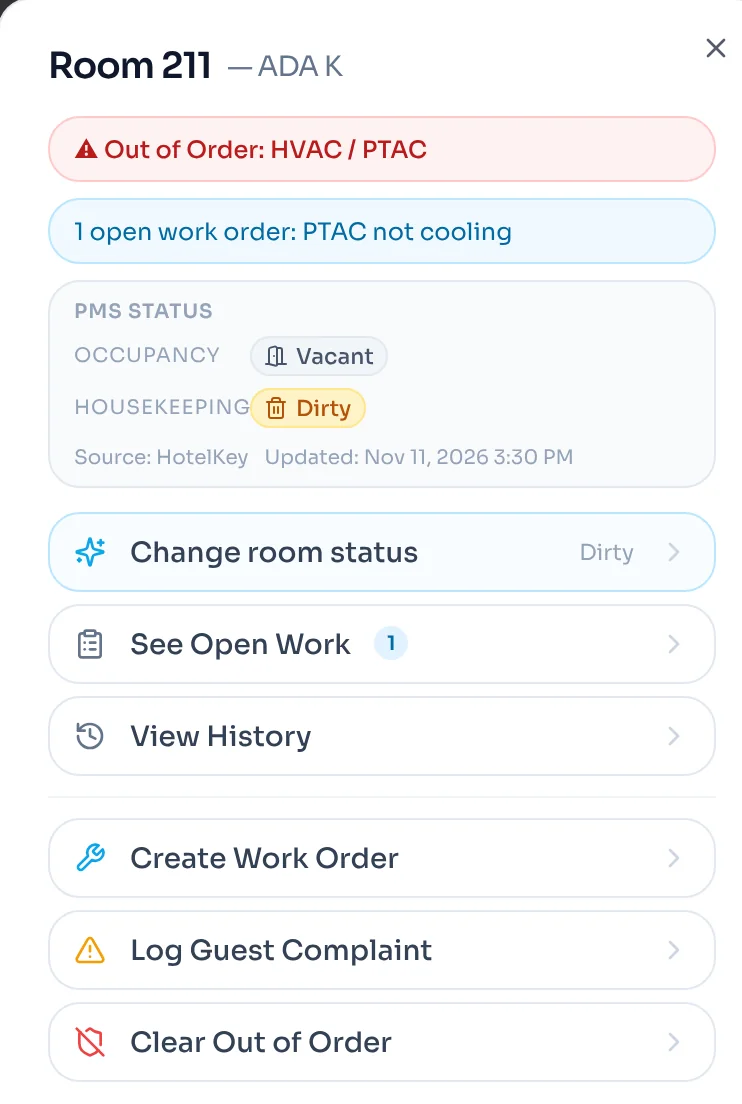
- Step 210:44Engineering
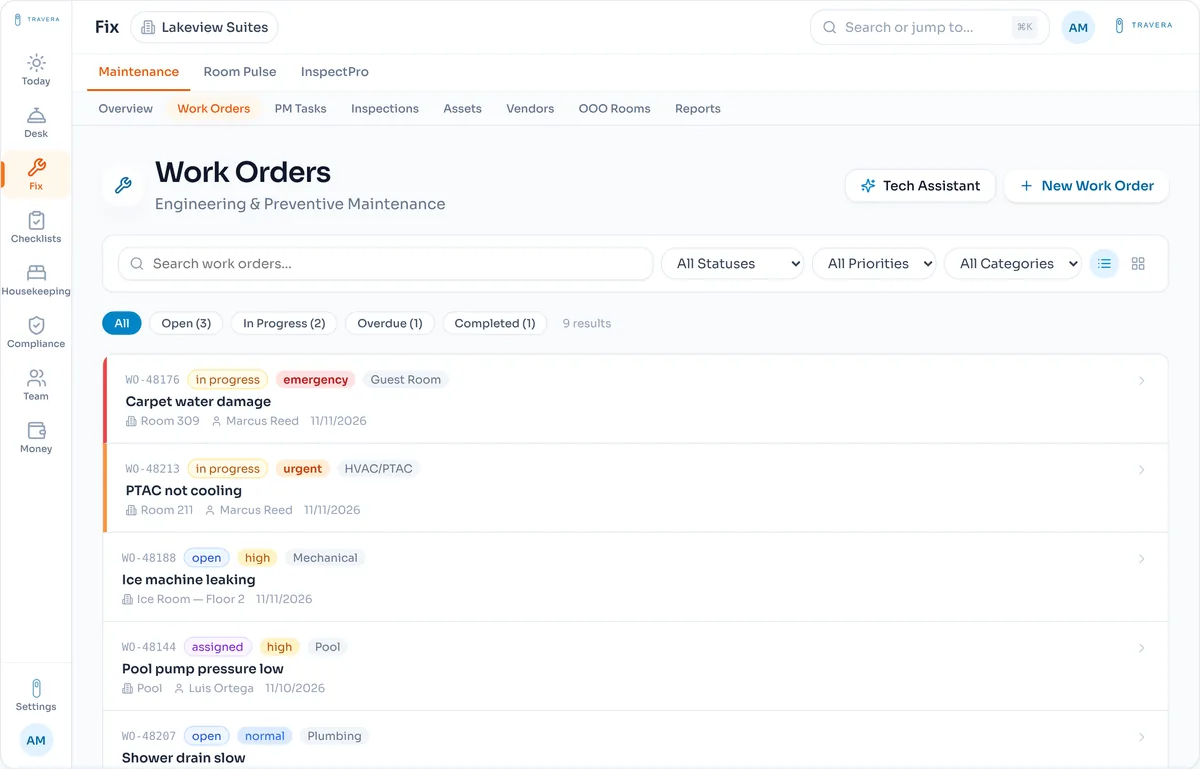
Engineering sees it at the top of the list.
The urgent PTAC job lands in Work Orders with the room, the category and who reported it. Engineering gets an email, and room 211 shows an open job on the Ops Board.
- Step 311:05Maintenance tech
The tech updates the job from the hallway.
From the Travera app, or the no-login link in their assignment email, the tech starts work, flags Needs parts, adds a photo and marks it complete with what was done. Every update is saved to the work order’s history.
OpenAssignedIn progressWaiting partsCompleted - Step 47:00Morning shift
The morning shift starts where the night left off.
A pinned start-of-shift note lists open complaints, out-of-order rooms and urgent work. The desk follows up with the guest in 211 and resolves the complaint.
Built for the people who aren’t at a desk.
Housekeepers, engineers and supervisors work from the same live data as the front desk — in English, Spanish or Gujarati, and even when the signal drops.
Click around a real Travera workspace.
Open rooms, filter the board, switch tabs and open work orders in a sample hotel. No sign-in or details needed, and nothing you do is saved.
Loading the interactive demo…
Open the live demo Works best on a laptop or tablet.Built by hoteliers
Co-founder Landon Lawrence ran Hilton and IHG franchised hotels as Director of Operations, after six years on the night audit desk.
Why it exists
“I built Travera because I needed it. Every hotel deserves tools that make the job easier.”
Landon Lawrence, co-founder of Travera
In live use
Front desk, housekeeping and maintenance teams run Travera every day at operating hotels.
$65 a month, locked for a year.
One flat price for the whole property. New hotels that sign up during the launch offer keep $65/month for a full 12 months — every module, every staff account, setup and training included.
$65/ month per property
12-month contract, billed monthly
- Every module, every staff account, setup and training included
- One flat price per property — no room limits, no per-user fees
- $65/month held for the full 12 months
- New properties only, while the launch offer lasts
12-month agreement billed monthly. No payment is taken on this site.
A few questions, answered.
- Is there a contract?
- Yes. The launch offer is a 12-month agreement, billed monthly at $65 per property.
- Are there limits on rooms or staff?
- No. One price per property, with staff accounts included.
- How long does setup take?
- Most properties are running within the same week, including staff training.
- How do we pay?
- Not on this site. Sign up and we invoice your property, payable by credit card, ACH or check.
- Who owns the data?
- You do. Your property's data stays in your account and is never sold or shared.
See Travera running on your hotel.
Any hotel is welcome. Suggest a few times that suit you, or tell us about your property and we will get Travera running for your team — every department and all staff accounts included.
- Tell us about your property
Where you are, how many rooms, and what you run today.
- Get your property set up
We will get Travera running on a setup that matches your property.
- Help shape what comes next
Hotels running Travera help decide what we build next. No obligation.
Questions? Contact@Traveraapp.com